How to open an SMS Backup & Restore XML file
An SMS Backup & Restore file (sms-….xml) is plain XML: one line per text, with MMS photos stored as long base64 text, so a text editor shows a wall of code. Open it in SyncTech's own viewer (in the app, Menu › View backups, or its online viewer), or choose it below to read it as conversations and save one as a PDF. Both read the file on your device.
What is inside an SMS Backup & Restore XML file?
SyncTech publishes the fields of its backup files. The essentials:
- Messages sit in an
<smses>element; call logs are a separate file with a<calls>element. - Each text is one
<sms … />line withaddress(the other number),date(“Java date representation (including milliseconds)”),type(“1 = Received, 2 = Sent, 3 = Draft, 4 = Outbox, 5 = Failed, 6 = Queued”),bodyandcontact_name(“(Unknown)” for numbers not in your contacts). - Each picture message is an
<mms>element with<parts>(the text and the attachments, each attachment “base64-encoded”) and<addrs>(who it was from and to: “137 = From, 151 = To, 130 = CC, 129 = BCC”). In a group, theaddresslists every number “joined with ~”, andinsert-address-tokenstands for your own number.
A fictional text looks like this in the file:
<sms protocol="0" address="+13125550142" date="1772820000000" type="1" body="Ok thanks ��" readable_date="Mar 6, 2026 12:00:00 PM" contact_name="Jordan Lee" />The �� is the 😀 emoji, written as two number codes. Photos are the hard part: each one becomes hundreds of kilobytes of base64 text inside the file, which is why backups with MMS reach hundreds of megabytes.
What are the ways to open it?
| Way | Where | What you get |
|---|---|---|
| In the app: Menu › View backups | Android | Your conversations, on the phone |
| In the app: Print from backups (v10.11.001+) | Android | A printout, or a PDF |
| In the app: export to HTML or CSV (v10.22.001+) | Android | A file to open on a computer |
| SyncTech’s online viewer | Any browser | Conversations; “the file is never uploaded” |
sms.xsl stylesheet next to the file |
A computer’s browser | A table, if the backup was made with the stylesheet option on |
| A text editor | Any | Raw XML; not readable for long |
| This page | Any browser, including iPhone | Conversations, then a PDF with a summary page |
SyncTech says its online viewer “can have troubles loading very large backups, especially if they have too many images/videos etc (MMS messages)”. That’s the case this page was built for.
How do you open it here?
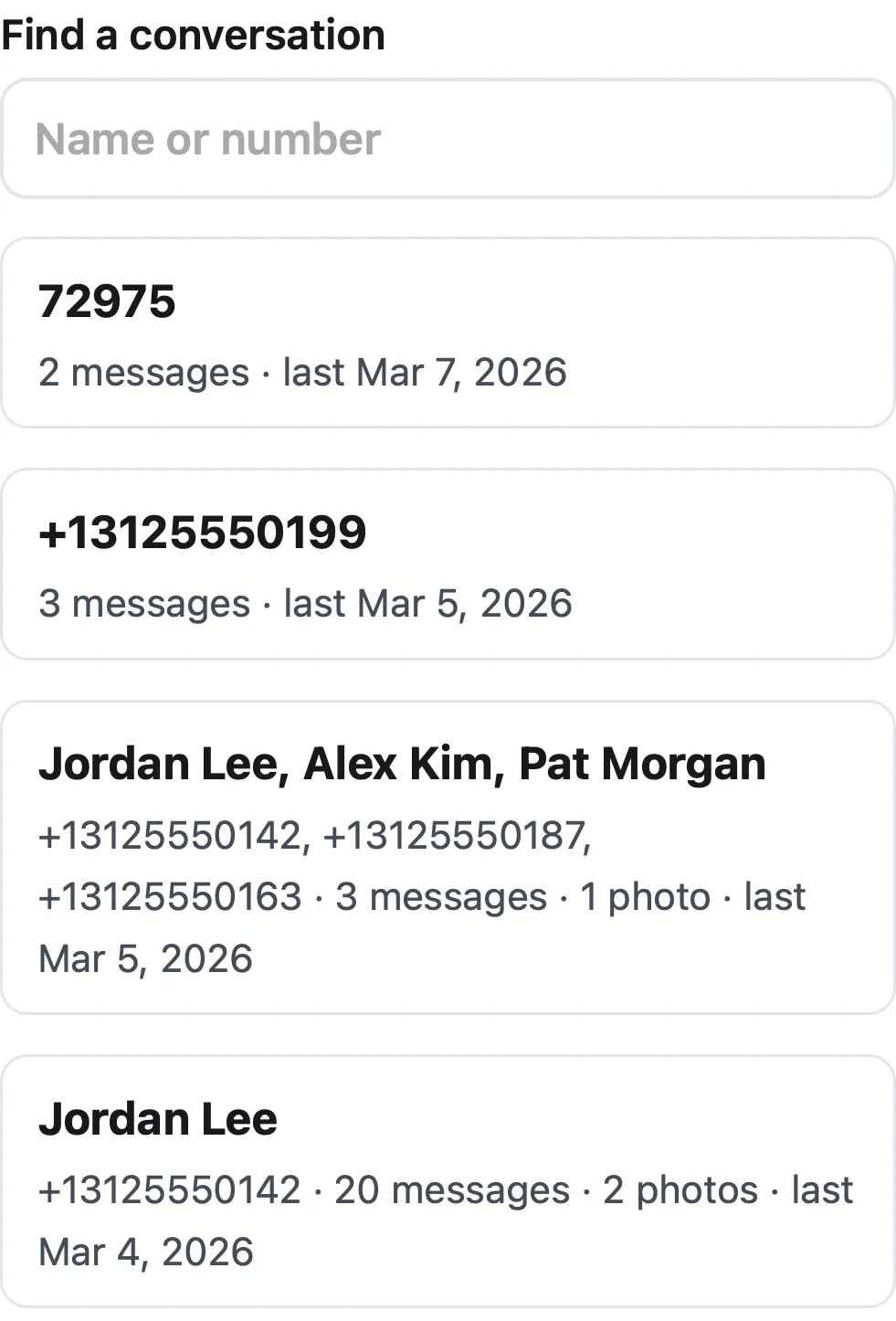
Choose the file below (on a phone, from Files or Downloads; on a computer, drag it in). The tool reads it in small pieces and lists every conversation with the name, number, number of messages and photos, and the last date. Tap one to see its messages, then make the PDF if you need one.
Turn Android texts (SMS Backup & Restore) into a PDF
Get the file: in WhatsApp, open the chat. iPhone: tap the contact or group name, then Export chat. Android: tap ⋮ › More › Export chat. Choose with or without media and save it (on iPhone, Save to Files). Then choose the .zip or .txt here.
Get the file: on Android, the free SMS Backup & Restore app saves your texts as an .xml file (its name starts with sms-). Choose that file here. Big backups with photos are fine: the file is read in small pieces, on your device.
Get the file: in Instagram or Facebook, go to Accounts Center › Your information and permissions › Export your information › Create export › Export to device. Pick Messages and set Format to JSON. When Meta's email arrives, download the zip and choose it here (if there are several zips, choose them all).
Get the file: in Telegram Desktop (on a computer), open the chat, click ⋮ › Export chat history, and set Format to Machine-readable JSON. Choose result.json here, or a zip of the export folder to include photos.
No export on iPhone? Take screenshots of the conversation (side button + volume up), then choose them here. Each one goes on a page in order, with its file name, date and SHA-256 fingerprint. Text in the screenshots is not read or retyped.
What page 1 will say
Preview of the messages
Pro is coming soon · $9.99 per export or $24.99 lifetime
- The clean PDF, with no “Preview” watermark on its pages
- A one-time price, no subscription
- Every source: WhatsApp, Android texts, Instagram, Messenger, Telegram, screenshots
Everything above is free while we launch. Leave your email and we'll write once, when Pro is ready.
Runs in your browser. Nothing is uploaded. No sign-up.
We tested a 151 MB backup with 60,024 texts and 405 MMS photos: in Safari’s engine (WebKit 27.2) on a MacBook Air (Apple M4), its 120 conversations were listed in 0.3 seconds and one 504-message conversation became a 39-page PDF with its photos in 1.0 second. The tool never loads the whole file into memory: it notes where each photo is and reads back only the photos of the conversation you open.
Why won’t my backup open?
- It’s a .xml.zip. SyncTech’s compressed backups are zip files; this page opens them directly if they have no password. Password-protected ones use AES-256 encryption: restore or export them in the app first.
- It’s the calls file. Call logs are saved separately (calls-….xml). You need the messages file, whose name starts with
sms-. - It’s still in the cloud. SyncTech can save to “Google Drive, Dropbox, OneDrive and local storage on the phone”. Download it to the device first.
- It’s very large. Most viewers load the whole file at once and stall. This page streams it.
- Messages seem to be missing. SyncTech’s FAQ says end-to-end encrypted RCS messages are marked “Restricted”, and a Google Messages bug since about May/June 2026 leaves outgoing RCS messages out of backups. The file can only show what the backup caught.
Can you get the file onto a computer?
Yes. SyncTech suggests sending it with the app’s “Send backup file” option or copying it from the phone’s storage, where the default folder is /storage/emulated/0/SMSBackupRestore/. If you saved it to Google Drive, download it from drive.google.com. You don’t need a computer for this page, though: it works in the phone’s own browser.
For the full route from texts to a court-ready printout, see Android texts to PDF and How to print text messages from a Samsung for court. How to present text messages in family court covers what to do with the PDF.
Questions people ask
Does SMS Backup & Restore have a PC version for viewing texts?
We found no desktop app from SyncTech. On a computer you can use SyncTech's online viewer, open the file in a browser with its sms.xsl stylesheet, use third-party viewers SyncTech links to, or choose the file on this page, which shows it as conversations and makes a PDF.
How do I convert an SMS Backup & Restore XML file to PDF?
Choose the file on this page, pick the conversation and tap Make the PDF. Or, in the app itself (version 10.11.001 and later), use Print from backups and save as PDF.
Why can't I open my backup file?
The usual reasons: it's a compressed .xml.zip with a password (decrypt it in the app first), it's the calls file rather than the messages file, it's still in Google Drive or Dropbox (download it first), or it's too big for the viewer you're using. This page streams files and has opened a 151 MB backup in our tests.
What do the numbers like � in the file mean?
They're emoji written as XML number codes, two numbers per emoji. Viewers turn them back into the emoji; a text editor shows the raw codes.
Can I open the XML file on an iPhone?
Yes, with this page in Safari: save the file to Files (from Google Drive, email or AirDrop), then choose it here. The file is read on the iPhone, not uploaded.
Can I edit the XML file?
You can, but don't if it may be evidence. Any change alters the file's fingerprint, and a changed backup is easy to challenge. Make a PDF from the untouched file instead.
Polyhawk is not a law firm and does not give legal advice. Whether a court accepts a document is up to the court and its rules; ask a lawyer or your court's self-help center.
Related
- Android texts to PDFBack up your Android texts with SMS Backup & Restore, then turn one conversation into a PDF with every date, sender and MMS photo. Nothing uploaded.
- Samsung texts for courtGalaxy texting apps can't print a conversation. Back it up and turn it into a dated PDF, or use Scroll capture; checked on Samsung's and Google's pages.
- Texts in family courtPrint the whole conversation with numbers, dates and times, bring the copies your court asks for, and be ready to say it's accurate. With official sources.
- All guidesEvery Polyhawk guide, by task.